
Inventory Dialpad Users' Contact Centers and Coaching Teams with Powershell
This script pulls all of your Dialpad users and fetchs the contact centers, departments and coaching teams that each user belongs to. It checks in with Microsoft Azure via Graph to see if the user's AAD account is active or disabled. It puts all of this out to JSON so you can analyze it with your preferred toolset. I personally have this script scheduled to run every hour. I pull the JSON into a web page with some javascript that let's me filter on any field in the output. It's supper handy for taking quick inventories of which users belong to any given contact center or department or making sure that I have users in the appropriate coaching teams. It's also really useful for keeping my Diapad licensing cleaned up.
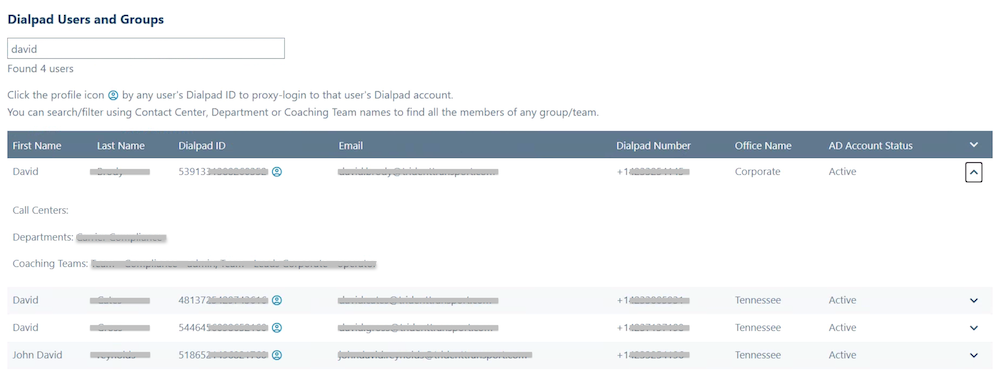
This is a glance at the web app that I use pull the JSON in to. I've linked each user's Dialpad ID to a proxy-login for quick access to their profile configurations.
Here's a sample of how the JSON output is formatted. Really clean and easy to read.
JSON
[
    {
        "FirstName":  "David",
        "LastName":  "Smith",
        "Email":  "david.smith@deepbluesky.com",
        "PhoneNumber":  "+14085552112",
        "ID":  "5051881234567890",
        "OfficeID":  "4766950123456789",
        "OfficeName":  "Office04",
        "CallCenters":  [
                            "CS Team 02",
                            "CS Team 03"
                        ],
        "Departments":  [

                        ],
        "CoachingTeams":  [
                              {
                                  "Name":  "Team - CS01",
                                  "Role":  "operator"
                              }
                          ],
        "AccountStatus":  "Active"
    },

...

]
...and here is the powershell script that will get you there. This script uses the Powershell key vault technique for storing and pulling sensetive values like API keys, ID's and secrets.
Powershell
# Get the API key from the key store
$DPAPIKey = Get-Secret -Name DialpadAPIKey -AsPlainText

$headers = @{
    "accept"        = "application/json"
    "authorization" = "Bearer $DPAPIKey"
}

# Initialize variables for pagination
$allUsers = @()
$cursor = $null  # Start with no cursor

# Fetch paginated user data
do {
    # Build the URI for the API request, including the cursor if it exists
    $uri = "https://dialpad.com/api/v2/users?limit=99"
    if ($cursor) {
        $uri += "&cursor=$cursor"
    }

    # Fetch the response
    try {
        $response = Invoke-RestMethod -Uri $uri -Headers $headers
    } catch {
        Write-Error "Failed to fetch user data: $_"
        break
    }

    # Add the fetched items to the collection
    if ($response.items) {
        $allUsers += $response.items
    }

    # Update the cursor for the next iteration
    $cursor = $response.cursor
} while ($cursor)  # Continue until no cursor is provided in the response

# Check if users were retrieved
if (-not $allUsers) {
    Write-Error "No users retrieved from the API."
    return
}

# Fetch other lists (call centers, departments, coaching teams)
$callCenterList = Invoke-RestMethod -Uri 'https://dialpad.com/api/v2/callcenters?limit=1000' -Headers $headers
$departmentList = Invoke-RestMethod -Uri 'https://dialpad.com/api/v2/departments?limit=1000' -Headers $headers
$coachingTeamList = Invoke-RestMethod -Uri 'https://dialpad.com/api/v2/coachingteams?limit=1000' -Headers $headers

# Assuming each list has a structure of items with 'id' and 'name'
$callCenters = @{}
$departments = @{}
$coachingTeams = @{}

foreach ($center in $callCenterList.items) {
    $callCenters[$center.id] = $center.name
}

foreach ($dept in $departmentList.items) {
    $departments[$dept.id] = $dept.name
}

foreach ($team in $coachingTeamList.items) {
    $coachingTeams[$team.id] = $team.name
}

# Define the office ID to office name mapping
$officeMapping = @{
    '4766950123456789' = 'Office01'
    '6197510123456789' = 'Office02'
    '6468200123456789' = 'Office03'
    '6145190123456789' = 'Office04'
    '5447000123456789' = 'Office05'
}

# Create an array to hold user data
$userData = @()

foreach ($user in $allUsers) {
    # Initialize lists for group memberships
    $userCallCenters = @()
    $userDepartments = @()
    $userCoachingTeams = @()

    foreach ($group in $user.group_details) {
        switch ($group.group_type) {
            'callcenter' { $userCallCenters += $callCenters[$group.group_id] }
            'department' { $userDepartments += $departments[$group.group_id] }
            'coachingteam' { $userCoachingTeams += @{ "Name" = $coachingTeams[$group.group_id]; "Role" = $group.role } }
        }
    }

    # Create and add user object
    $userObject = [PSCustomObject]@{
        FirstName = $user.first_name
        LastName = $user.last_name
        Email = $user.emails[0]
        PhoneNumber = $user.phone_numbers[0]
        ID = $user.id
        OfficeID = $user.office_id
        OfficeName = $officeMapping[$user.office_id]
        CallCenters = $userCallCenters
        Departments = $userDepartments
        CoachingTeams = $userCoachingTeams
        # Any other fields you want to include...
    }

    $userData += $userObject
}

# Sort users alphabetically by email
$userData = $userData | Sort-Object Email

# Authenticate with Microsoft Graph
$clientId = Get-Secret -Name GraphClientID -AsPlainText
$tenantId = Get-Secret -Name GraphTenantID -AsPlainText
$clientSecret = Get-Secret -Name GraphSecret -AsPlainText
$tokenRequestBody = @{
    Grant_Type    = "client_credentials"
    Scope         = "https://graph.microsoft.com/.default"
    Client_Id     = $clientId
    Client_Secret = $clientSecret
}
$tokenResponse = Invoke-RestMethod -Method Post -Uri "https://login.microsoftonline.com/$tenantId/oauth2/v2.0/token" -ContentType "application/x-www-form-urlencoded" -Body $tokenRequestBody
$graphToken = $tokenResponse.access_token

# Function to get account status from Microsoft Graph
function Get-AccountStatus($email) {
    $userUri = "https://graph.microsoft.com/beta/users/$email"
    $graphHeaders = @{
        "Authorization" = "Bearer $graphToken"
        "Content-Type"  = "application/json"
    }
    try {
        $graphResponse = Invoke-RestMethod -Uri $userUri -Headers $graphHeaders -Method Get

        if ($graphResponse.accountEnabled -eq $true) {
            return "Active"
        } else {
            return "Disabled"
        }
    }
    catch {
        Write-Host "Error fetching user status for ${email}: $_"
        return "Not Found"
    }
}

# Update userData with account status
foreach ($user in $userData) {
    $accountStatus = Get-AccountStatus -email $user.Email
    $user | Add-Member -MemberType NoteProperty -Name "AccountStatus" -Value $accountStatus
}

# Export the updated data to JSON
$userData | ConvertTo-Json -Depth 5 | Set-Content -Path "DialpadUsers.json"

Write-Host "User data successfully fetched, processed, and exported!"